Hi, my name is Rachel, and I'm a photo addict. I take pictures... lots of pictures... all the time. I've always loved taking pictures, but especially since my kids were born and I started blogging, I've found myself taking thousands of pictures a year. Since I don't always want to carry my big camera around with me, I capture a lot of great shots of the kids with my phone. Honestly, many of my favorite pictures were taken with my phone because I was able to capture a spontaneous moment. (And these are the cute pictures that are perfect for crafts and gifts, like these Easter Photo Gift Tags.
Scroll down for the free printable.)
The crazy thing is, I rarely print pictures. In fact, it's ridiculous how few printed pictures I have of my kids. I've always just put it off, thinking I'd have to take forever to move the pictures from folders on my computer or files on my phone to a disk and then take them in to get printed. Now that has changed. It is SO easy to use the
Walgreens Photo App.
Now I am hooked, not just on taking pictures, but on printing them. In about 5 minutes, you can open the Walgreens app, choose pictures from your phone or Facebook to print, and order them. This is especially useful for printing some pictures to send in a holiday card, or in putting together a quick gift for a family member, like these meaningful Easter gifts I put together for my parents and my in-laws.
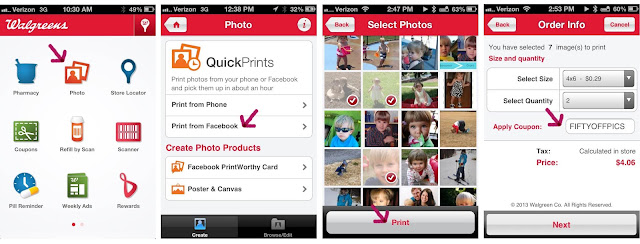
How to use the Walgreens Photo App:
1. Download and open the free
Walgreens app. Click on Photo.
2. Now you can choose if you want to print pictures from your phone or from Facebook. (I don't think you can print pictures from both your phone and Facebook in the same order, but it is so easy to just place a second order.)
3. Click on the photos you want to print. A check mark will appear. You can only upload 5 photos at once. Click print to add them to your cart, but you can keep adding more pictures before checking out.
4. Choose what size and quantity of photos you want. Don't forget to search for coupon codes. I found one for 50% off prints.
5. You will be asked to choose a location. You can type in a zip code, but the closest Walgreens locations to me were already listed.
6. Enter your info and submit your order. You don't have to enter credit card info or anything. You can pay in the store.
7. Don't forget to use your Balance Rewards Card. It's easy to sign up, and if you already have a card, you can just scan it.
8. That's it. Now you pick up your pictures. The estimated time is usually an hour, but my first order took only about 15 minutes.
(You can see my whole shopping experience
here.) While you're there, check out the awesome photo center. Walgreens also carries a small but cute and affordable selection of picture frames. Right now, they are buy one get one free. I love how these simple black frames look, and I ended up paying $7 total for them. #HappyHealthy
As much as I LOVE this app and definitely plan on using it again and again, I have one quick caveat for you to keep in mind when printing pictures from Instagram. I ended out printing pictures from Facebook, my camera roll, and a few that I had cropped and edited on Instagram. Because these Instagram pictures are square, I thought that they would print 4 x 4 with 2 inches of white space to the side (which is exactly what I wanted). However, they automatically zoomed in to fill the 4 x 6 space. About half of the pictures were messed up completely, but the other half turned out great. In fact, the adorable picture of Lyla pretending to drive the car (in the second frame at the bottom of the post) was one of these zoomed in Instagram photos and I love how it turned out. I would just recommend printing the original version from your camera roll in most cases.
You can also print pictures of your phone to make personalized gift tags. You can print these Happy Easter tags for free
HERE. I printed them onto kraft paper cardstock, but they also look cute on white cardstock. You need a circle paper punch that is 1.5" in diameter.
Print out the gift tags onto cardstock. Cut them out just inside of the light gray lines. Use a 1.5" circle hole punch to cut out a circle in the egg for your photo. Put the tag over your Walgreens prints and find pictures that fit well in the circle. Trim the picture so that it's smaller than the tag and larger than the circle, and tape it to the back of the tag (of course I used colorful washi tape). Punch a hole in the top and add some ribbon, then use these cute personalized tags to give gifts this Easter.
VIEW AND PRINT THE PHOTO GIFT TAGS
I ended out making two different versions, one for each set of grandparents.
You can view and print the photo Happy Easter gift tags
HERE.
You can follow along with Walgreens on
Facebook or
Twitter.
“I am a member of the Collective Bias® Social Fabric® Community. This content has been compensated as part of a social shopper insights study for Collective Bias® and Walgreens. All opinions are my own. #cbias #SocialFabric


